How Treasure Quest Handles Opt-Ins & Rewards
Last updated: October 25, 2025
This page explains exactly how shoppers grant consent, how we pass that decision to Shopify, and what happens with the reward emails sent through our delivery provider. Use it as a quick reference for compliance reviews or MailerSend approvals.
Opt-In Flow Overview
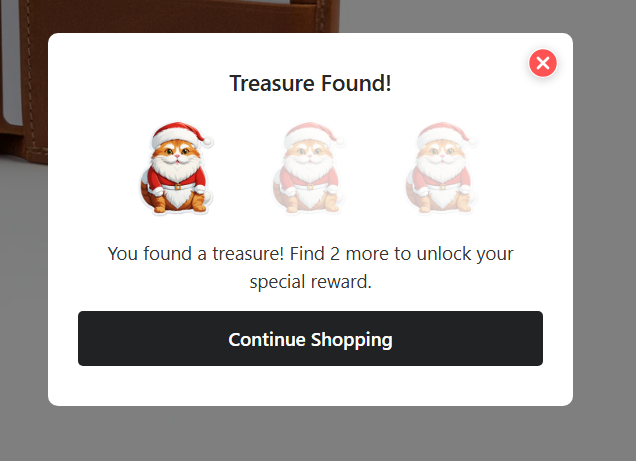
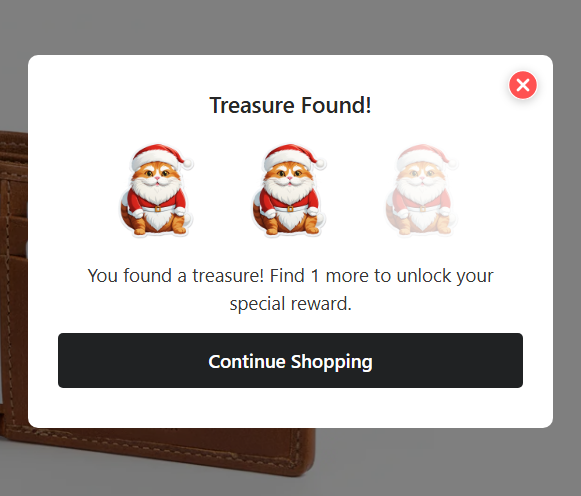
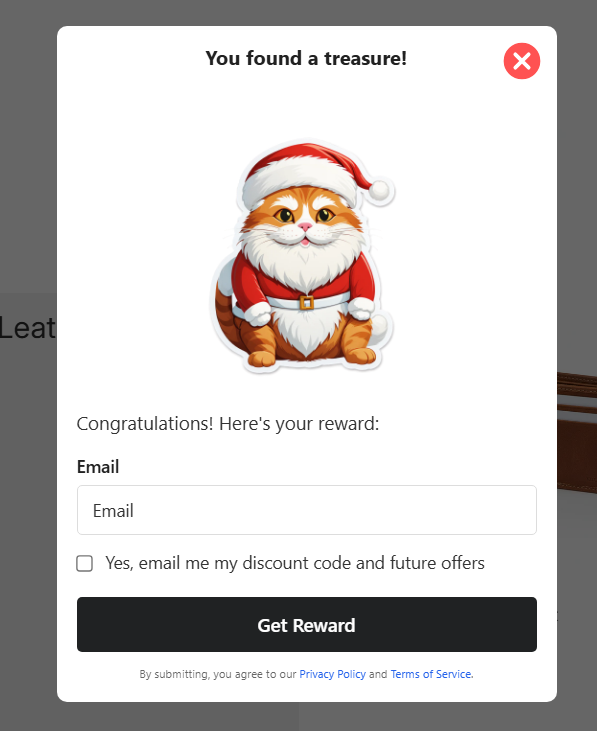
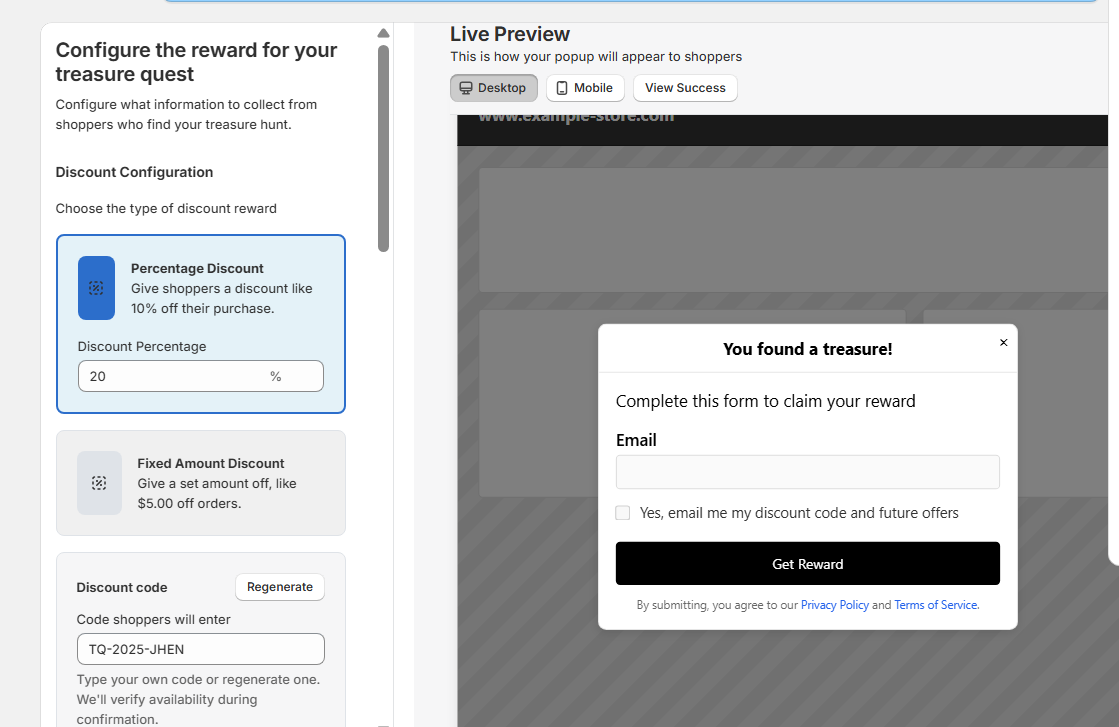
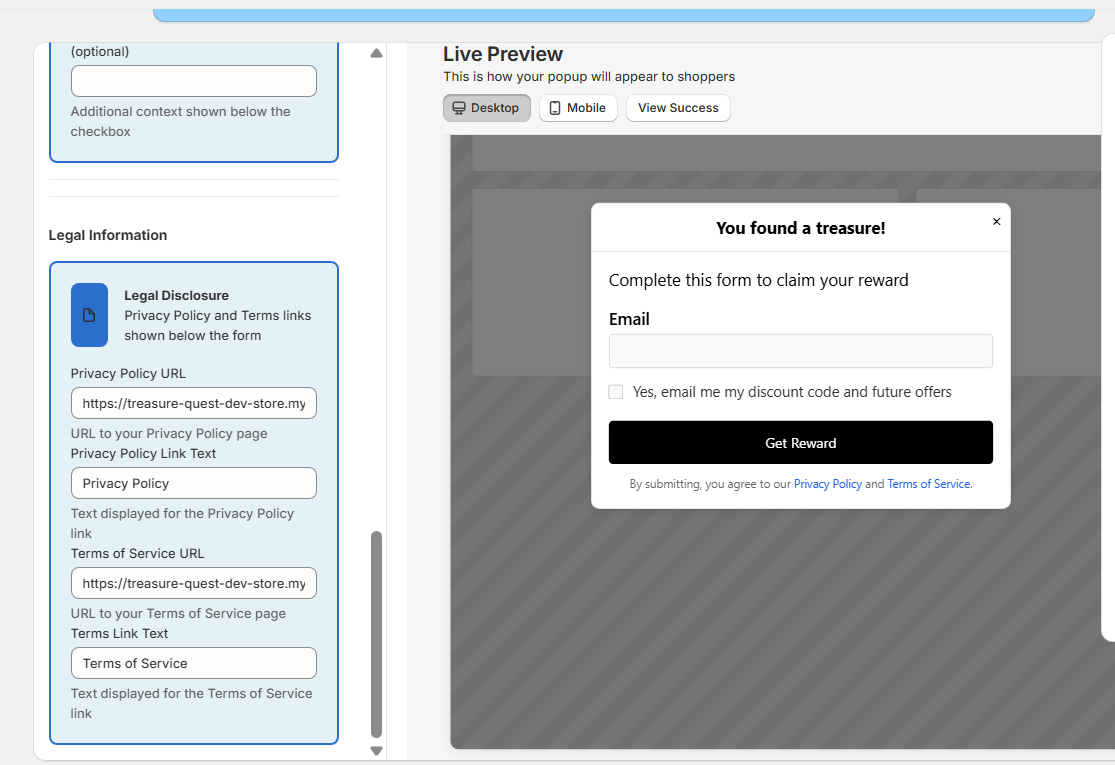
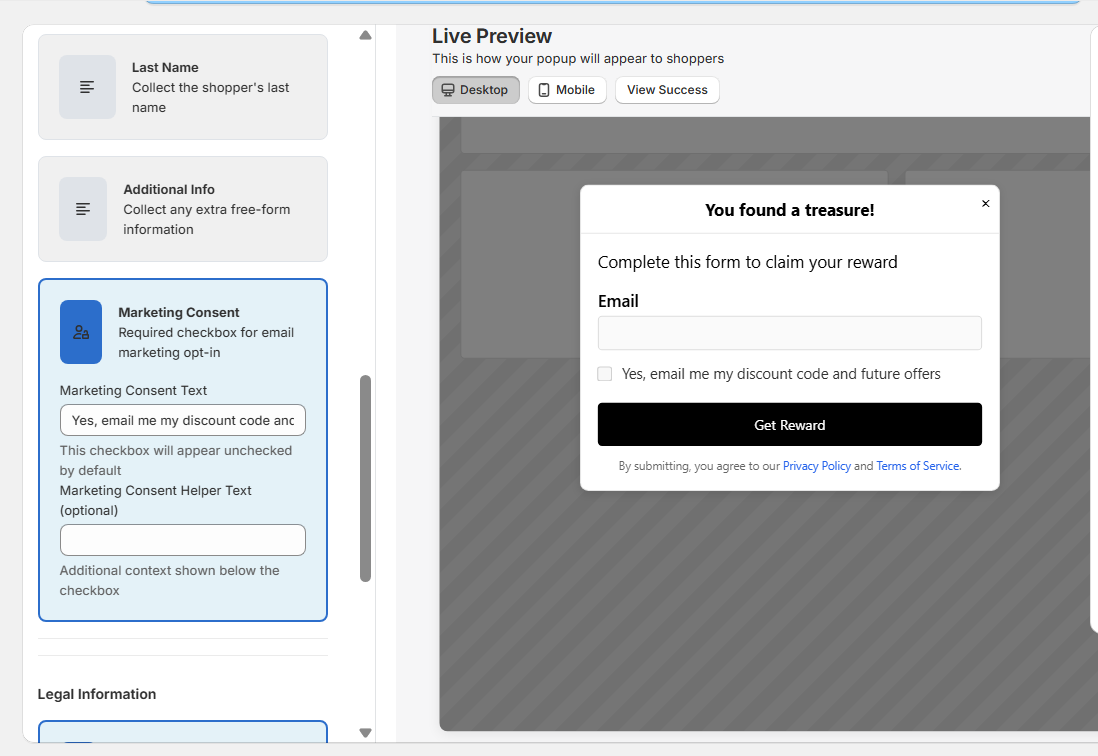
Shoppers encounter the quest reward modal on your Shopify storefront. The modal contains a clear checkbox describing marketing consent along with direct links to our Privacy Policy, Terms of Service, and this Email & Data page. The primary call to action remains disabled until the shopper actively checks the box.
Once submitted, we immediately log the decision inside QuestReward.emailSettings, including:
- Whether the shopper opted in (sendSuccessEmails flag)
- The quest delivery mode and sender name used for the email
- The current timestamp attached to the consent event
We then call Shopify’s customerCreate mutation with the shopper’s contact details and theemailMarketingConsent payload. Shopify stores marketingState: "SUBSCRIBED",marketingOptInLevel: "SINGLE_OPT_IN", and consentUpdatedAt with the timestamp used.
Storefront Walkthrough Video
This Loom recording shows the complete shopper experience: discovering the sticker, opting in with the marketing checkbox, and receiving the reward email. Share the video link and storefront password with reviewers so they can replay the flow on demand.
Storefront Consent Walkthrough
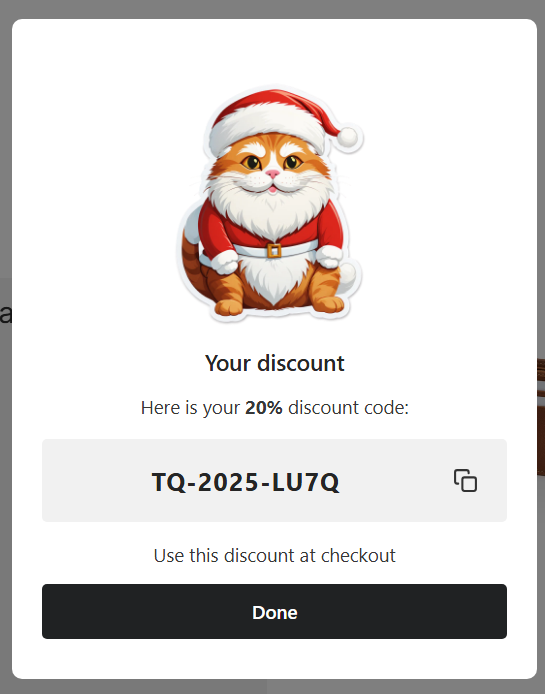
The sequence below shows the shopper experience from spotting the gamified treasure sticker through email capture and discount delivery. Replace the image files in /public/email-flow with your live storefront screenshots to keep this gallery current.

Admin Configuration Walkthrough
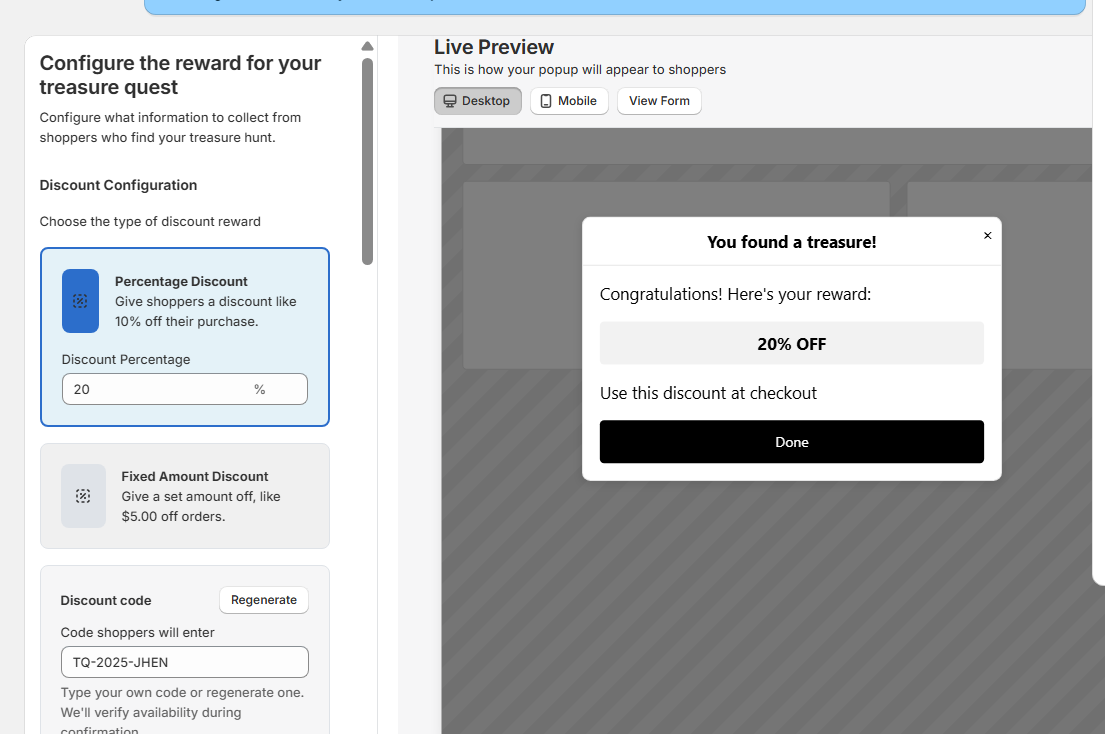
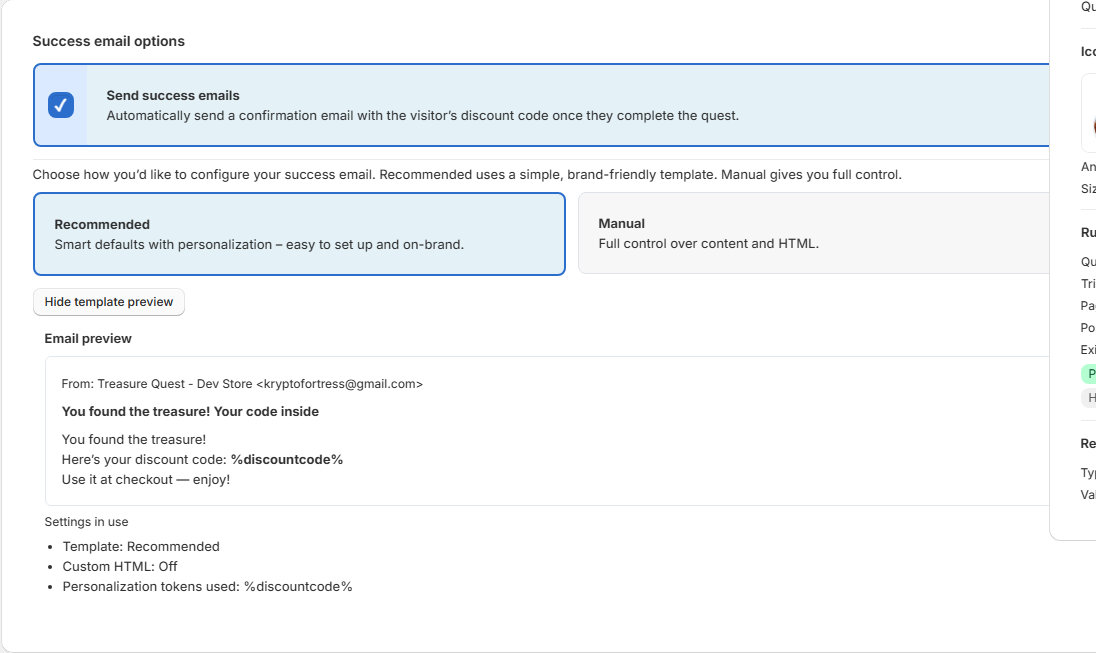
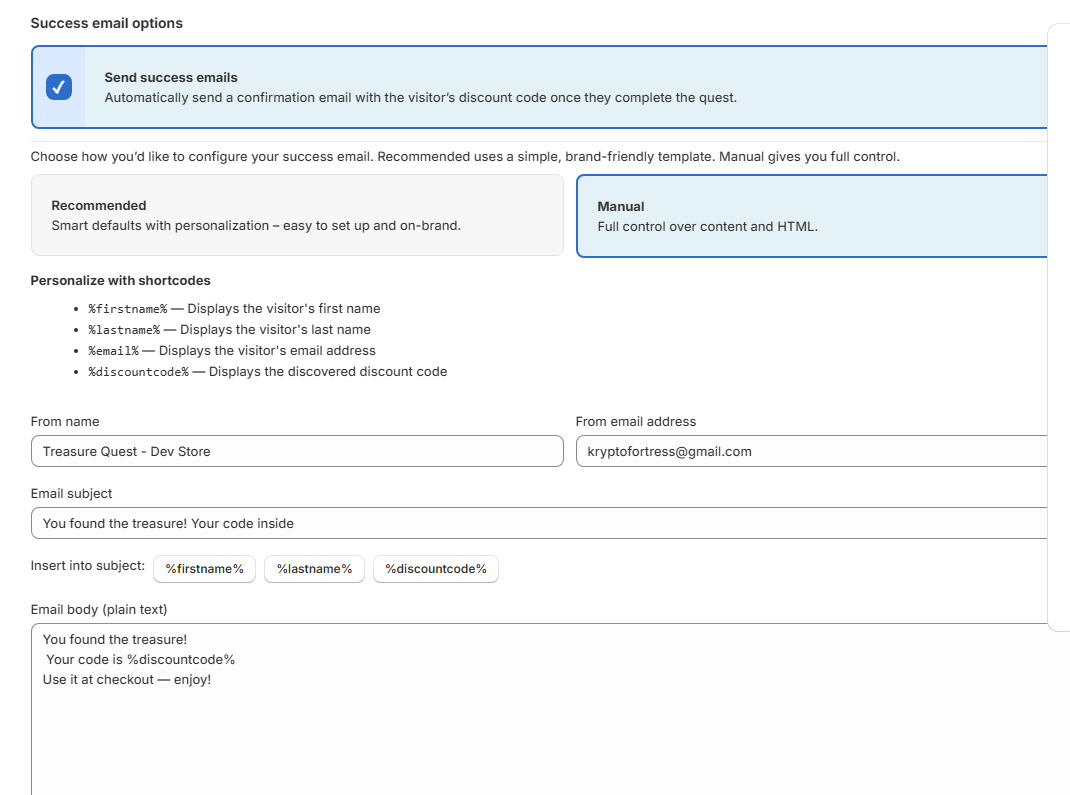
These screenshots document how merchants configure the quest popup inside the Treasure Quest admin. Place your latest captures inside /public/email-settings using the filenames below so this gallery stays aligned with the configuration steps.
Flow Diagram
Add your annotated screenshot or diagram here to visualize the modal, checkbox, and submission flow.
Sample Reward Email
Treasure Quest sends one-to-one reward confirmations through our email delivery provider using the sender identity rewards@treasurequestapp.com. Every message includes CAN-SPAM compliant contact details and an unsubscribe footer that routes back to Shopify’s consent preferences.
The template below is what reviewers will see. Tokens such as %discountcode% and%fromname% populate automatically when MailerSend delivers the reward email. You can download the raw HTML if you need to provide it separately in your approval request.
Download HTML template<div style="font-family: 'Segoe UI', Arial, sans-serif; color: #1f2937; line-height: 1.6; background-color: #f8fafc; padding: 32px;">
<div style="max-width: 560px; margin: 0 auto; background: #ffffff; border-radius: 16px; box-shadow: 0 12px 40px rgba(15, 23, 42, 0.12); overflow: hidden;">
<div style="padding: 32px;">
<p style="font-size: 16px;">Hi %firstname%,</p>
<p style="font-size: 16px; margin-top: 16px;">
You found the treasure! Here’s your discount code—copy it and paste it at checkout to claim your reward:
</p>
<p style="font-size: 28px; font-weight: 700; letter-spacing: 4px; color: #0b69c3; text-align: center; margin: 24px 0;">
%discountcode%
</p>
<p style="font-size: 16px; margin-bottom: 24px;">
Keep exploring the shop—new treasures drop often, and your quest progress helps unlock future bonuses.
</p>
<a href="{{shop_url}}" style="display: inline-block; background: linear-gradient(135deg, #f59e0b, #f97316); color: #0f172a; text-decoration: none; font-weight: 600; padding: 12px 20px; border-radius: 999px;">
Continue shopping
</a>
<p style="font-size: 16px; margin-top: 28px;">
Thanks for playing,<br />
<strong>%fromname%</strong><br />
Treasure Quest
</p>
</div>
</div>
<div style="max-width: 560px; margin: 32px auto 0; text-align: center; font-size: 12px; color: #64748b;">
<p style="margin: 0 0 8px;">
Treasure Quest Labs, Inc. · 935 Eldridge Rd #1052 · Sugar Land, Texas 77478 · United States
</p>
<p style="margin: 0; color: #475569;">
You received this email because you completed a Treasure Quest and consented to receive your reward.
<br />
To update your marketing preferences, visit your Shopify customer account or contact support@treasurequestapp.com.
</p>
</div>
</div>
Key Facts for Reviewers
- Consent storage: Decisions live in our Postgres database withinQuestReward.emailSettings and remain for the duration of the quest plus 90 days.
- Shopify sync: Marketing consent is synced via emailMarketingConsentso merchants can audit consent directly in Shopify.
- Email delivery: Messages are transactional rewards only, sent through our vetted email provider with bounce/complaint handling managed by their suppression lists and our webhooks.
- Data subject rights: Deletions and opt-out requests flow through Shopify customer preferences and our uninstall/data erasure routines.
DNS Records for MailerSend
These are the live DNS entries authorizing MailerSend to send from treasurequestapp.com. Keep CNAME records in DNS only mode (not proxied) so MailerSend can verify them.
| Type | Name / Host | Value | Purpose |
|---|---|---|---|
| TXT | @ | v=spf1 include:_spf.mailersend.net include:zohomail.com -all | Authorizes MailerSend (and Zoho) to send mail from the root domain. |
| CNAME | mlsend2._domainkey | mlsend2._domainkey.mailersend.net. | DKIM signing key for MailerSend. |
| CNAME | mta | mailersend.net. | Return-path / bounce handling host. |
| TXT | _dmarc | v=DMARC1; p=quarantine; rua=mailto:dmarc@treasurequestapp.com | Recommended DMARC policy for aggregate reporting. |
Zoho MX and DKIM records remain unchanged; only the entries above relate to MailerSend authentication.
Policy References
Privacy Policy
Explains how we collect quest data, sync marketing consent to Shopify, retain records, and respond to GDPR/CCPA requests. MailerSend reviewers can confirm that shopper consent flows are documented in full.
View Privacy Policy →Terms of Service
Covers merchant responsibilities, consent capture obligations, and service-level disclaimers—plus your contact details for legal notices. Include this link when submitting the MailerSend approval form.
View Terms of Service →Need More Details?
Reach our team at support@treasurequestapp.com for any extra compliance documentation or to request a copy of our MailerSend verification pack.